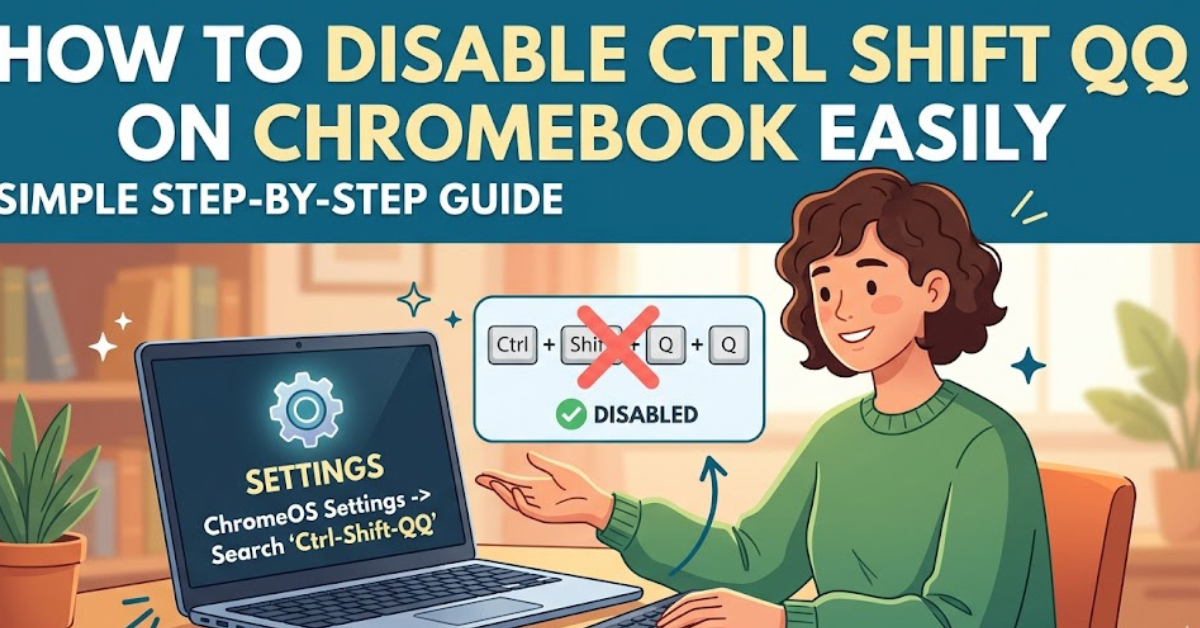
Have you ever been working on your Chromebook and suddenly got signed out because you accidentally pressed Ctrl + Shift + Q + Q? It can be frustrating, especially when you’re in the middle of a task, class, or important meeting.
If you’re searching for how to disable Ctrl Shift QQ, you’re not alone. Many Chromebook users look for ways to turn off this keyboard shortcut to avoid unexpected logouts. In this guide, you’ll learn what Ctrl Shift QQ does, whether it can actually be disabled, and the best alternatives to prevent accidental activation.
What Does Ctrl Shift QQ Do on a Chromebook?
Ctrl + Shift + Q + Q is a built-in ChromeOS keyboard shortcut designed to quickly sign a user out of their Chromebook.
The shortcut works in two steps:
- Press Ctrl + Shift + Q once to display a sign-out warning.
- Press Q again while holding the keys to confirm and immediately log out.
Google introduced this feature as a quick way for users to safely exit their accounts, particularly in schools, offices, and shared Chromebook environments.
Can You Disable Ctrl Shift QQ on Chromebook?
The short answer is no, ChromeOS does not currently provide a built-in option to disable Ctrl + Shift + Q + Q.
Unlike some operating systems that allow users to customize or remap keyboard shortcuts, ChromeOS keeps certain system-level shortcuts locked. The sign-out command is one of those protected shortcuts.
This means there is no official setting in:
- ChromeOS Settings
- Keyboard settings
- Accessibility options
- Google Chrome browser settings
that allows you to completely turn off the shortcut.
Alternatives to Disable or Prevent Ctrl Shift QQ
Although there is no direct way to disable the shortcut, there are several methods you can use to avoid accidentally triggering it.
Use the Confirmation Screen to Your Advantage
One helpful feature is that pressing Ctrl + Shift + Q once does not immediately sign you out.
ChromeOS displays a warning message asking you to press Q again to confirm. If you release the keys or do nothing, the sign-out will be canceled.
This extra step helps prevent most accidental logouts.
Change Your Typing Habits and Keyboard Usage
Many accidental Ctrl Shift QQ activations happen when users are trying to use nearby shortcuts.
For example:
- Ctrl + Shift + Tab switches between previous browser tabs.
- Ctrl + Shift + T reopens a closed browser tab.
- Ctrl + Q is close to the sign-out command.
Being aware of your hand placement can reduce accidental presses.
Use an External Keyboard With Different Key Placement
Some Chromebook keyboards have compact layouts where keys are placed closely together.
Switching to an external USB or Bluetooth keyboard may make accidental key combinations less common because of:
- Larger key spacing
- Different keyboard layouts
- More comfortable typing positions
This can be especially useful for students and professionals who use their Chromebook for long hours.
Check Chromebook Policies (For Managed Devices)
If your Chromebook is provided by a school or company, it may be managed through the Google Admin Console.
Administrators can control many ChromeOS features and restrictions. However, even administrators generally cannot disable the Ctrl + Shift + Q + Q sign-out shortcut because it is part of the operating system’s core behavior.
Can You Remap the Ctrl Shift QQ Shortcut?
ChromeOS allows limited keyboard customization, such as changing the behavior of:
- Search key
- Caps Lock
- Ctrl key
- Alt key
- Escape key
However, it does not allow users to remap or remove the Ctrl Shift QQ logout shortcut.
Some users search for browser extensions or third-party tools claiming to disable it, but these usually cannot modify protected ChromeOS system shortcuts.
Keyboard Shortcuts You Can Customize on Chromebook
While the logout shortcut cannot be changed, you can adjust some keyboard functions:
- Open Settings on your Chromebook.
- Select Device.
- Click Keyboard and inputs or Keyboard (depending on your ChromeOS version).
- Change available key assignments.
Customizing keys may make your keyboard more comfortable and reduce accidental shortcut mistakes.
Tips to Avoid Accidental Chromebook Sign-Outs
Use these practical tips to prevent unwanted logouts:
- Learn common Chromebook keyboard shortcuts.
- Avoid resting your fingers on Ctrl, Shift, and Q keys.
- Use a full-size external keyboard if needed.
- Save documents regularly using automatic cloud sync like Google Drive.
- Enable autosave features in apps such as Google Docs.
These small habits can save you from losing your workflow.
Key Takeaways
- Ctrl + Shift + Q + Q is a ChromeOS shortcut that signs you out.
- There is currently no official method to disable this shortcut.
- ChromeOS requires a second Q press to confirm logout.
- Keyboard settings do not include an option to remove it.
- External keyboards and better shortcut awareness can help prevent accidental activation.
Frequently Asked Questions
Is there a way to completely disable Ctrl Shift QQ?
No. ChromeOS does not offer a built-in setting to completely disable the Ctrl + Shift + Q + Q sign-out shortcut.
Why does Ctrl Shift QQ sign me out?
Google designed the shortcut as a quick account sign-out feature for Chromebooks, especially useful on shared devices.
Can a school administrator disable Ctrl Shift QQ?
Generally, no. Even managed Chromebooks controlled through Google Admin Console do not have a standard option to remove this system-level shortcut.
Can I use an extension to disable Ctrl Shift QQ?
No browser extension can reliably disable protected ChromeOS system shortcuts because they operate at a deeper system level than the Chrome browser.
What happens if I press Ctrl Shift Q only once?
Pressing the combination once displays a sign-out warning. Your Chromebook will only log out if you press Q a second time to confirm.
Are there custom keyboard apps for ChromeOS that can remove the shortcut?
Most keyboard customization tools on ChromeOS cannot override built-in system commands like the sign-out shortcut.
Conclusion
Understanding how to disable Ctrl Shift QQ starts with knowing ChromeOS’s limitations. While there is no official option to turn off this system shortcut, the confirmation step, careful keyboard usage, and alternative hardware can significantly reduce accidental sign-outs.
If Ctrl Shift QQ frequently interrupts your work, try adjusting your keyboard habits, using a larger keyboard, and enabling autosave features to protect your progress. A few small changes can make your Chromebook experience much smoother.