
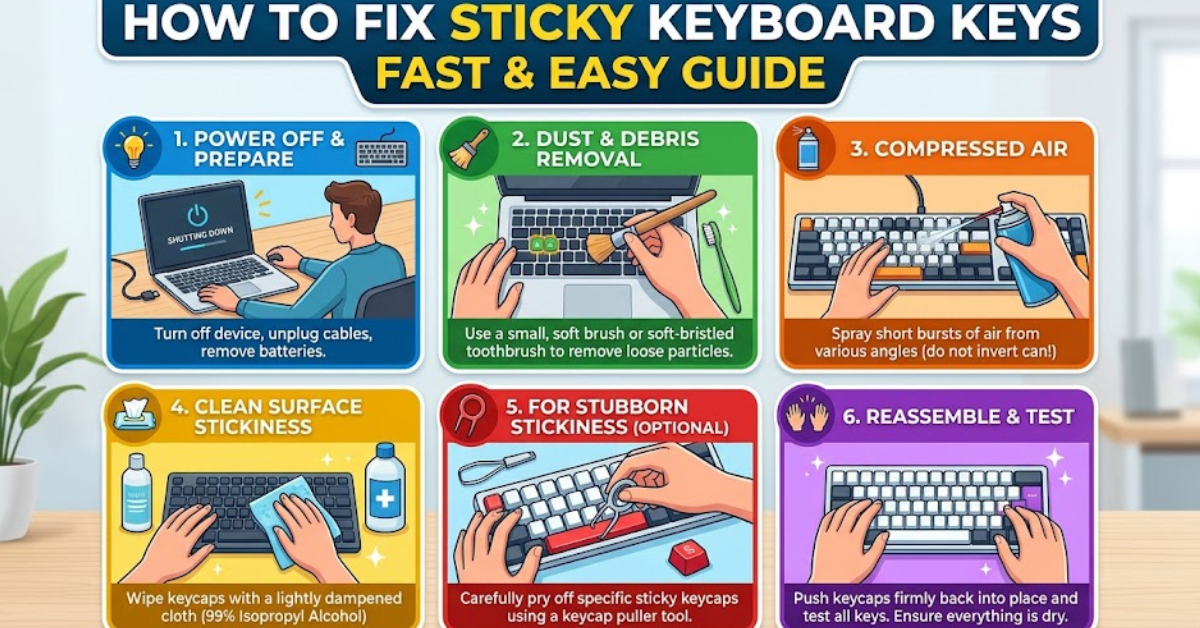
If you’ve ever tried typing an important message only to find your keyboard keys sticking, you know how frustrating it can be. The good news is that learning how to fix sticky keyboard keys is easier than most people think. Whether it’s dust, spills, or everyday grime, most keyboard issues can be solved at home without expensive repairs.
In this guide, we’ll walk through practical, safe, and effective methods to get your keyboard working smoothly again.
Why Keyboard Keys Get Sticky
Sticky keys don’t happen randomly. They usually build up over time due to common issues:
- Dust and dirt trapped under keys
- Food crumbs or debris
- Liquid spills (tea, coffee, soda)
- Oil and sweat from fingers
- Humidity and moisture buildup
Understanding the cause helps you choose the right fix when dealing with sticky keyboard keys.
How to Fix Sticky Keyboard Keys Step-by-Step
1. Turn Off and Unplug Your Keyboard
Before doing anything, always power down your device. If it’s a laptop, shut it off completely. For external keyboards, unplug or disconnect Bluetooth.
This prevents damage and avoids accidental key presses while cleaning.
2. Shake and Tap Out Loose Debris
One of the simplest tricks in how to fix sticky keyboard keys is removing surface debris.
- Hold the keyboard upside down
- Gently shake it
- Tap the back lightly
You’ll often see crumbs and dust fall out immediately.
3. Use Compressed Air for Deep Cleaning
Compressed air is one of the most effective tools for keyboard maintenance.
- Spray between the keys at an angle
- Move across the keyboard in sections
- Use short bursts to avoid moisture buildup
This helps remove hidden dirt stuck under keys.
4. Clean with Isopropyl Alcohol
For sticky residue caused by spills or grime:
- Dip a cotton swab in 70%–90% isopropyl alcohol
- Gently clean around each sticky key
- Avoid soaking the keyboard
Alcohol evaporates quickly and helps break down oil and sugar residue.
5. Remove Keycaps If Possible
For mechanical keyboards or removable keys:
- Carefully pop off the keycap using a key puller or flat tool
- Soak keycaps in warm soapy water
- Let them dry completely before reinstalling
This is one of the most effective methods for deep cleaning sticky keyboard keys.
6. Fix Laptop Sticky Keys Carefully
Laptop keyboards require extra caution.
- Use compressed air first
- Clean gently with microfiber cloth and alcohol
- Avoid pulling keys unless you’re experienced
If a spill is involved, internal cleaning by a technician may be required.
Preventing Sticky Keyboard Keys in the Future
Prevention saves time and effort. Try these habits:
- Avoid eating or drinking near your keyboard
- Use a keyboard cover for laptops
- Clean weekly with compressed air
- Wash hands before use
- Keep workspace dust-free
A little care goes a long way in keeping keys smooth.
Common Mistakes to Avoid
When learning how to fix sticky keyboard keys, avoid these errors:
- Using too much water or liquid cleaners
- Scrubbing aggressively under keys
- Reassembling keycaps before they are fully dry
- Using sharp objects that damage switches
FAQs About Sticky Keyboard Keys
Why are my keyboard keys sticky?
Most commonly due to dust buildup, food particles, or liquid spills that leave residue under the keys.
Can I fix sticky keyboard keys without opening them?
Yes. Compressed air and alcohol cleaning often fix mild to moderate stickiness without removing keys.
Is it safe to use water to clean a keyboard?
Only slightly damp cloths are safe externally. Never pour water directly onto a keyboard.
How do I fix sticky laptop keyboard keys?
Use compressed air first, then gently clean with isopropyl alcohol. For severe issues, professional repair may be needed.
How often should I clean my keyboard?
A light cleaning every 1–2 weeks and a deep cleaning every few months is ideal.
Conclusion
Learning how to fix sticky keyboard keys doesn’t require technical skills—just the right tools and a bit of patience. From simple shaking and compressed air to deep cleaning with alcohol, most keyboard problems can be solved at home.
If your keys still feel sticky after cleaning, it may be time to replace damaged switches or consult a technician. For now, regular maintenance will keep your keyboard smooth, responsive, and frustration-free.
If you want, I can also create a checklist version or a troubleshooting flowchart for quick repairs.