
Ever written a blog post and wondered, “Now what? How do I actually get this live on my website?” You’re not alone. Many beginners struggle with the publishing side of WordPress even after creating great content.
In this guide, you’ll learn how to upload blog on WordPress in a simple, practical way—even if you’ve never used the platform before. We’ll walk through everything from logging in to hitting that publish button, plus formatting tips and SEO basics so your post looks professional and ranks better.
By the end, you’ll confidently know how to publish and manage blog posts like a WordPress user.
Understanding the WordPress Dashboard
Before learning how to upload blog on WordPress, it’s important to understand where everything is located.
When you log into WordPress, you’ll see the dashboard. This is your control center where you can:
- Create and edit blog posts
- Manage media (images, videos)
- Customize your website design
- Install plugins for extra features
To upload a blog, you’ll mainly use the Posts section.
Step-by-Step: How to Upload Blog on WordPress
This is the core process most beginners are looking for.
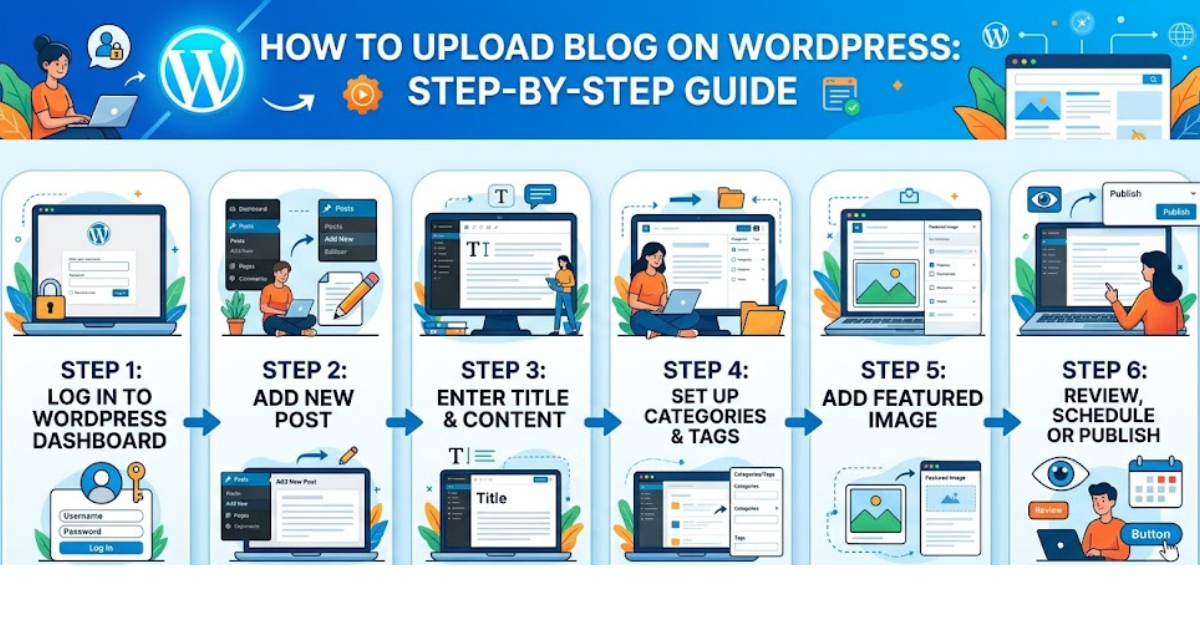
Step 1: Log in to WordPress
Go to your website login page (usually yourdomain.com/wp-admin) and enter your credentials.
Once inside, you’re ready to start the process of how to upload blog on WordPress.
Step 2: Go to “Posts” → “Add New”
From the left sidebar:
- Click Posts
- Then click Add New
This opens the WordPress block editor (Gutenberg), where you’ll build your blog post.
Step 3: Add Your Blog Title and Content
Start by entering your blog title at the top.
Then, in the content area:
- Write or paste your blog content
- Use headings (H2, H3) for structure
- Break paragraphs for readability
This step is central to how to upload blog on WordPress because your content is what users and search engines see.
Step 4: Add Media (Images, Videos)
A blog without visuals feels incomplete.
To add media:
- Click the “+” icon
- Select Image or Video
- Upload or choose from the media library
Images improve engagement and SEO performance.
Step 5: Set Categories and Tags
On the right side panel:
- Categories help organize your blog (e.g., SEO, Tech, Lifestyle)
- Tags describe specific topics within your post
This helps both users and search engines understand your content better.
Step 6: Preview Your Blog
Before publishing, click Preview.
Check for:
- Spelling mistakes
- Mobile responsiveness
- Formatting issues
This step ensures your version of how to upload blog on WordPress doesn’t lead to publishing errors.
Step 7: Click Publish
Once everything looks good:
- Click Publish
- Confirm again if prompted
Congratulations—your blog is now live!
Formatting Tips for a Professional Blog
Knowing how to upload blog on WordPress is not enough—you also need to make it readable and engaging.
Use Short Paragraphs
Long blocks of text scare readers away. Keep it clean and spaced out.
Add Headings Properly
Use H2 for main sections and H3 for subpoints to improve SEO structure.
Use Bullet Points
Lists make content easier to scan and understand.
Optimize Images
Compress images and use descriptive file names for better loading speed and SEO.
Common Mistakes to Avoid
Even after learning how to upload blog on WordPress, beginners often make these mistakes:
- Publishing without proofreading
- Not adding categories or tags
- Using too many plugins that slow the site
Avoiding these will make your blog more professional and effective.
Key Takeaways
- WordPress makes blogging simple once you understand the dashboard
- You can upload a blog in just a few steps using the editor
- Formatting and structure matter as much as writing
FAQ: How to Upload Blog on WordPress
1. Is it hard to learn how to upload blog on WordPress?
No, it’s very beginner-friendly. Once you understand the dashboard, uploading a blog becomes a simple step-by-step process.
2. Do I need coding skills to upload a blog on WordPress?
Not at all. WordPress is designed so you can publish content without any coding knowledge.
3. Can I edit my blog after publishing?
Yes, you can edit anytime. Just go to Posts → All Posts and update your content.
4. Why is my blog not showing after publishing?
It may be set to private, scheduled, or there could be caching delays. Double-check visibility settings.
5. How often should I upload blogs on WordPress?
Consistency matters more than frequency. Even 1–2 quality posts per week can perform well.
6. Do images matter when learning how to upload blog on WordPress?
Yes, images improve readability, engagement, and SEO rankings when used properly.
Conclusion
Learning how to upload blog on WordPress is one of the most important steps in starting your blogging journey. Once you understand the dashboard, content editor, and publishing process, you can focus more on writing quality content instead of technical confusion.
With the steps and tips shared above, you now have everything you need to confidently publish your own blog posts. Start applying what you’ve learned, and your WordPress site will feel much easier to manage over time.