Have you ever wanted to discuss the ending of a movie, reveal a gaming strategy, or share sensitive information without ruining the surprise for everyone else? That’s exactly where Discord’s spoiler feature comes in handy.
If you’re wondering how to spoiler text on Discord, the process is surprisingly simple. Discord allows users to hide text, images, and attachments behind a spoiler tag, ensuring that other users only see the content if they choose to reveal it.
In this guide, you’ll learn multiple ways to create spoiler text on Discord, how spoiler tags work on desktop and mobile, common mistakes to avoid, and tips for using spoilers effectively in servers and direct messages.
What Is Spoiler Text on Discord?
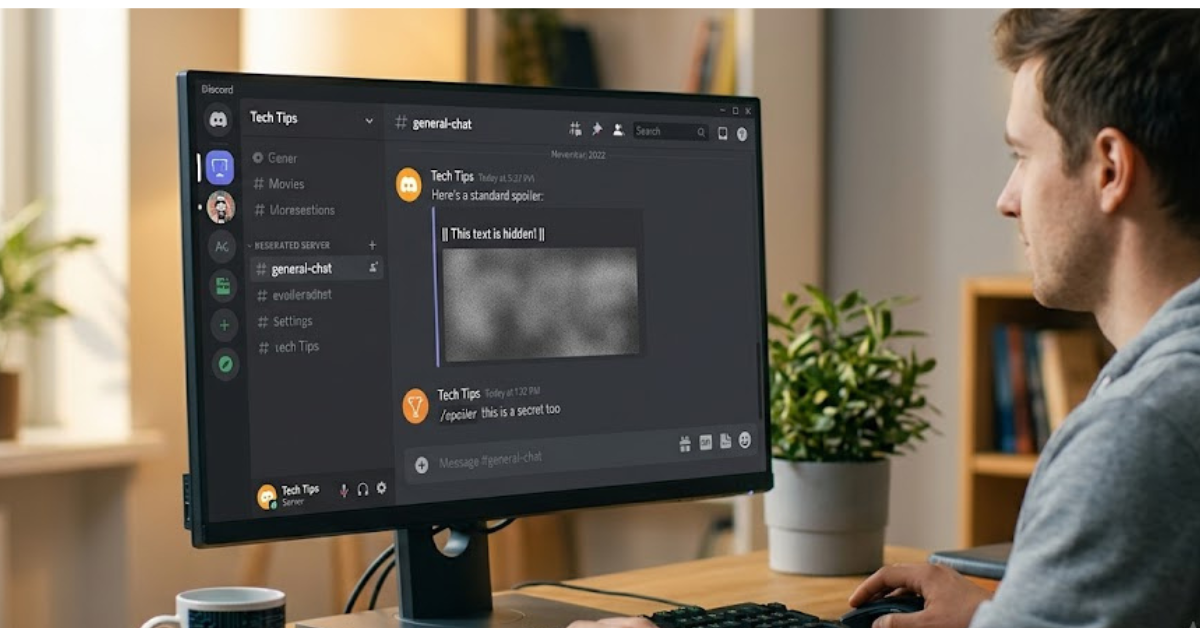
Spoiler text is a built-in Discord feature that hides content until someone clicks or taps on it.
When text is marked as a spoiler:
- It appears as a black or gray hidden block.
- Other users must click it to reveal the message.
- It helps prevent accidental exposure to sensitive or surprising information.
This feature is widely used for:
- Movie and TV show spoilers
- Video game story reveals
- Sports results
- Sensitive discussions
- Hidden jokes or punchlines
Discord introduced spoiler tags to improve user experience and make conversations more considerate for everyone.
How to Spoiler Text on Discord Using Markdown
The most common method is using Discord’s markdown formatting system.
Add Double Vertical Bars Around Text
To create spoiler text, place two vertical bars (||) before and after your message.
Example:
||This is spoiler text||Result:
Hidden text that users can click to reveal.
Step-by-Step Instructions
- Open Discord.
- Navigate to any channel or direct message.
- Type your message.
- Add
||at the beginning and end. - Press Enter.
For example:
I can't believe ||the hero was the villain all along||.Only the spoiler section remains hidden.
How to Create Spoiler Text on Discord Desktop
If you’re using the Discord desktop application or browser version, there’s an additional method.
Use Discord’s Built-In Spoiler Formatting Tool
- Highlight the text you want to hide.
- Right-click the selected text.
- Choose Mark as Spoiler.
- Send the message.
Discord automatically adds the spoiler formatting for you.
Benefits of This Method
- No need to remember markdown symbols
- Faster for beginners
- Reduces formatting errors
This option is especially useful for users unfamiliar with Discord text formatting.
How to Spoiler Text on Discord Mobile
Many users access Discord through Android and iPhone apps. Fortunately, spoiler tags work the same way.
Using Spoiler Tags on Mobile
- Open the Discord mobile app.
- Enter the channel or conversation.
- Type your message.
- Add double vertical bars around the text.
Example:
||Final boss defeated in one hit||- Send the message.
The spoiler will remain hidden until tapped.
Finding the Vertical Bar Symbol
Depending on your keyboard:
- Android users may find it under symbols.
- iPhone users can access it through the numbers and symbols keyboard.
- Long-pressing certain keys may reveal additional symbols.
How to Spoiler Images and Attachments on Discord
Discord allows more than just hidden text. You can also mark images, videos, and files as spoilers.
On Desktop
- Click the + upload button.
- Select an image or file.
- Before sending, check Mark as Spoiler.
- Send the attachment.
The image will appear blurred until someone clicks it.
Drag-and-Drop Method
When dragging a file into Discord:
- Drop the file into the chat.
- Select Mark as Spoiler.
- Send it.
On Mobile
Some versions of Discord mobile may support spoiler attachments directly, while others may require renaming the file with a spoiler prefix.
Discord updates features regularly, so options can vary slightly by platform and version.
Why Use Spoiler Tags on Discord?
Spoiler tags aren’t just for movie endings.
Protect User Experience
Many communities rely on spoilers to keep discussions enjoyable.
Examples include:
- Gaming servers discussing new releases
- Anime communities
- Movie fan groups
- Sports discussion channels
- Book clubs
Prevent Accidental Reveals
Without spoiler tags, a single message can ruin:
- Plot twists
- Competition results
- Game endings
- Surprise announcements
Using spoilers demonstrates respect for fellow community members.
Common Spoiler Tag Mistakes
Even experienced Discord users occasionally make formatting errors.
Missing One Vertical Bar
Incorrect:
|spoiler text||Correct:
||spoiler text||Both sides need two vertical bars.
Extra Spaces
While spaces usually don’t break spoiler tags, inconsistent formatting can sometimes create confusion.
Forgetting the Closing Tag
Incorrect:
||This spoiler never closesAlways ensure the ending || is included.
Using Unsupported Formatting
Discord spoilers work specifically with the markdown spoiler syntax. Other formatting symbols won’t create spoiler text.
Combining Spoilers With Other Discord Formatting
Discord allows spoiler tags to work alongside other markdown styles.
Bold Spoiler Text
||**Important secret**||Italic Spoiler Text
||*Hidden message*||Mixed Formatting
||**The final score was 5-0**||The content remains hidden until revealed.
Discord Server Rules and Spoilers
Many Discord communities establish spoiler policies.
Common rules include:
- Mark all major story spoilers.
- Hide spoilers for recently released games.
- Use dedicated spoiler channels.
- Avoid spoilers in server names or channel titles.
Following these guidelines helps maintain a positive community environment.
Best Practices for Using Spoiler Text
Give Context First
Instead of posting hidden text without explanation:
Better:
Movie ending spoiler:
||The main character survives||
Users know what they’re about to reveal.
Keep Spoilers Relevant
Avoid hiding every message. Excessive spoiler formatting can make conversations harder to follow.
Respect Community Guidelines
Different servers may have different spoiler expectations.
Use Spoilers for Sensitive Information
Spoiler tags can also help hide:
- Puzzle solutions
- Quiz answers
- Secret strategies
- Event outcomes
Key Takeaways
- Discord spoiler text hides content until clicked.
- Use
||text||to create spoiler tags. - Spoilers work on desktop, browser, and mobile versions.
- Images and files can also be marked as spoilers.
- Proper spoiler usage improves community etiquette.
- Many Discord servers require spoiler tags for major reveals.
Frequently Asked Questions
How do I make spoiler text on Discord?
Place two vertical bars before and after your text. For example:
||This is hidden||Discord will automatically hide the content.
Does spoiler text work in Discord mobile?
Yes. The same spoiler syntax works on Android and iPhone. Simply type ||your text|| before sending the message.
Can I hide images as spoilers on Discord?
Yes. When uploading an image on desktop, select Mark as Spoiler before sending. The image will appear blurred until opened.
Why isn’t my spoiler tag working?
The most common reason is incorrect formatting. Make sure there are exactly two vertical bars on both sides of the text.
Can I use spoiler tags in Discord direct messages?
Absolutely. Spoiler formatting works in servers, group chats, and direct messages.
How do I reveal spoiler text on Discord?
Simply click or tap the hidden text block. The content will become visible only for you.
Conclusion
Learning how to spoiler text on Discord is a simple skill that can make online conversations more respectful and enjoyable. Whether you’re discussing the latest movie twist, sharing gaming secrets, or posting sensitive information, spoiler tags help ensure that others can choose when they want to see the content.
By using the ||text|| format, marking images as spoilers, and following server guidelines, you can communicate effectively while protecting the experience of fellow Discord users. Start using spoiler tags in your next conversation and help create a better Discord community for everyone.